Mind Map
Display Markdown notes as mind maps using Markmap.
- Overview
- Updates
- Privacy
Obsidian Mind Map


This repository contains a plugin for Obsidian for viewing Markdown notes as Mind Maps using Markmap.
A similar plugin is available for Visual Studio Code.
Features
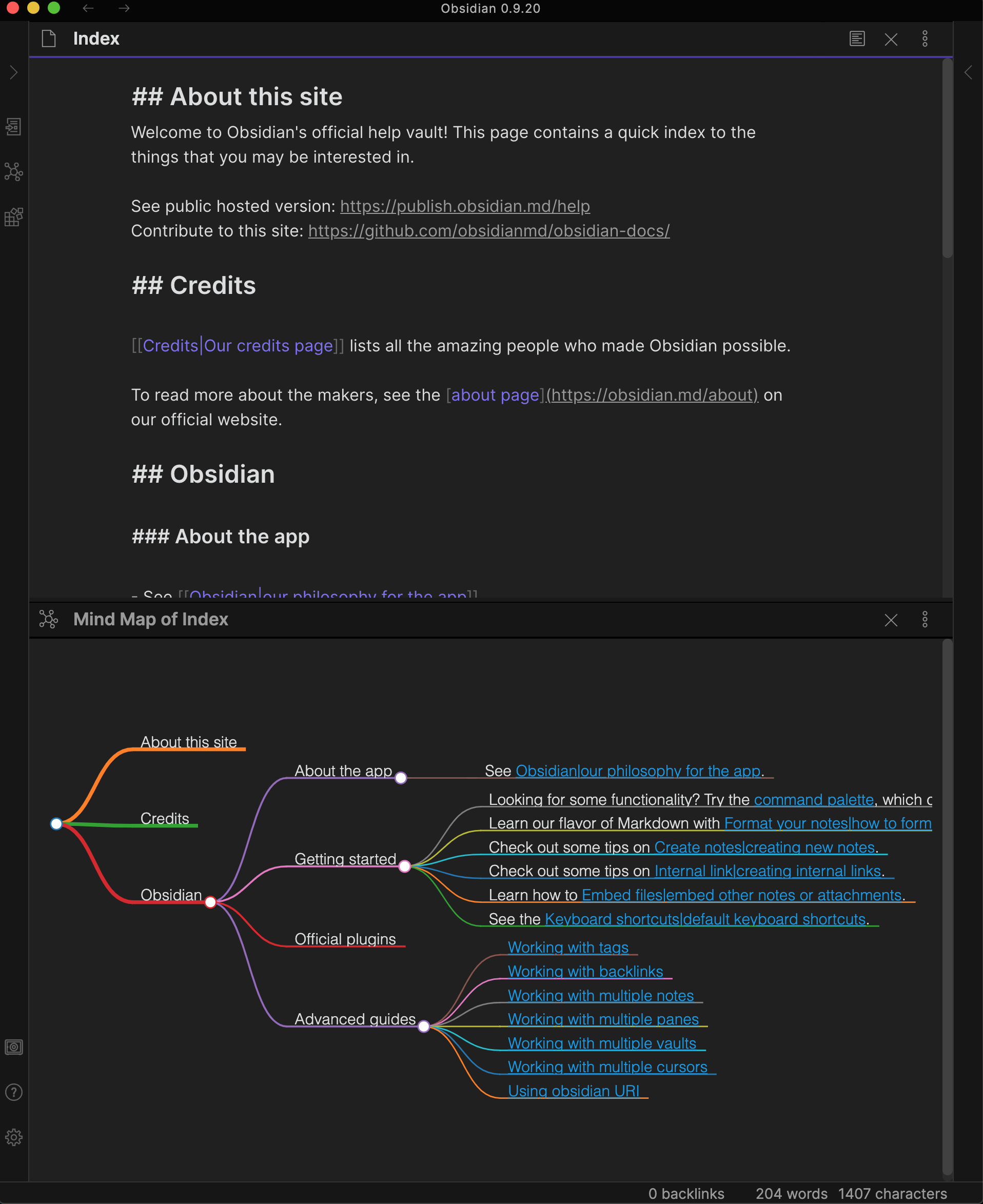
- Preview your current note as a Mind Map
- Mind Map preview updates as you select other panes, similar to the Local Graph, Outline and Backlink panes
Usage
You can open the Mind Map preview for the current note with a command.

Preview More Options Menu
The Mind Map Preview view has 2 options from the "more options" menu:
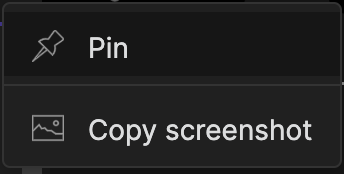
Pin
Allows you to pin the Mind Map preview pane to the current note so that you can select other notes with the current Mind Map remaining in place. A pin icon will appear in the header of the Mind Map preview pane. Click the pin icon to unpin.
Copy screenshot
Places a copy of the Mind Map SVG on your clipboard allowing you to paste it into a note in Obsidian or into an image editor of your choice.
Compatibility
Custom plugins are only available for Obsidian v0.9.7+.
The current API of this repo targets Obsidian v0.9.20.
Installing
As of version 0.9.7 of Obsidian, this plugin is available to be installed directly from within the app. The plugin can be found in the Community Plugins directory which can be accessed from the Settings pane under Third Party Plugins.
Manual installation
- Download the latest release
- Extract the obsidian-day-planner folder from the zip to your vault's plugins folder:
<vault>/.obsidian/plugins/
Note: On some machines the.obsidianfolder may be hidden. On MacOS you should be able to pressCommand+Shift+Dotto show the folder in Finder. - Reload Obsidian
- If prompted about Safe Mode, you can disable safe mode and enable the plugin.
For developers
Pull requests are both welcome and appreciated. 😀
If you would like to contribute to the development of this plugin, please follow the guidelines provided in CONTRIBUTING.md.
Donating
This plugin is provided free of charge. If you would like to donate something to me, you can via PayPal. Thank you!